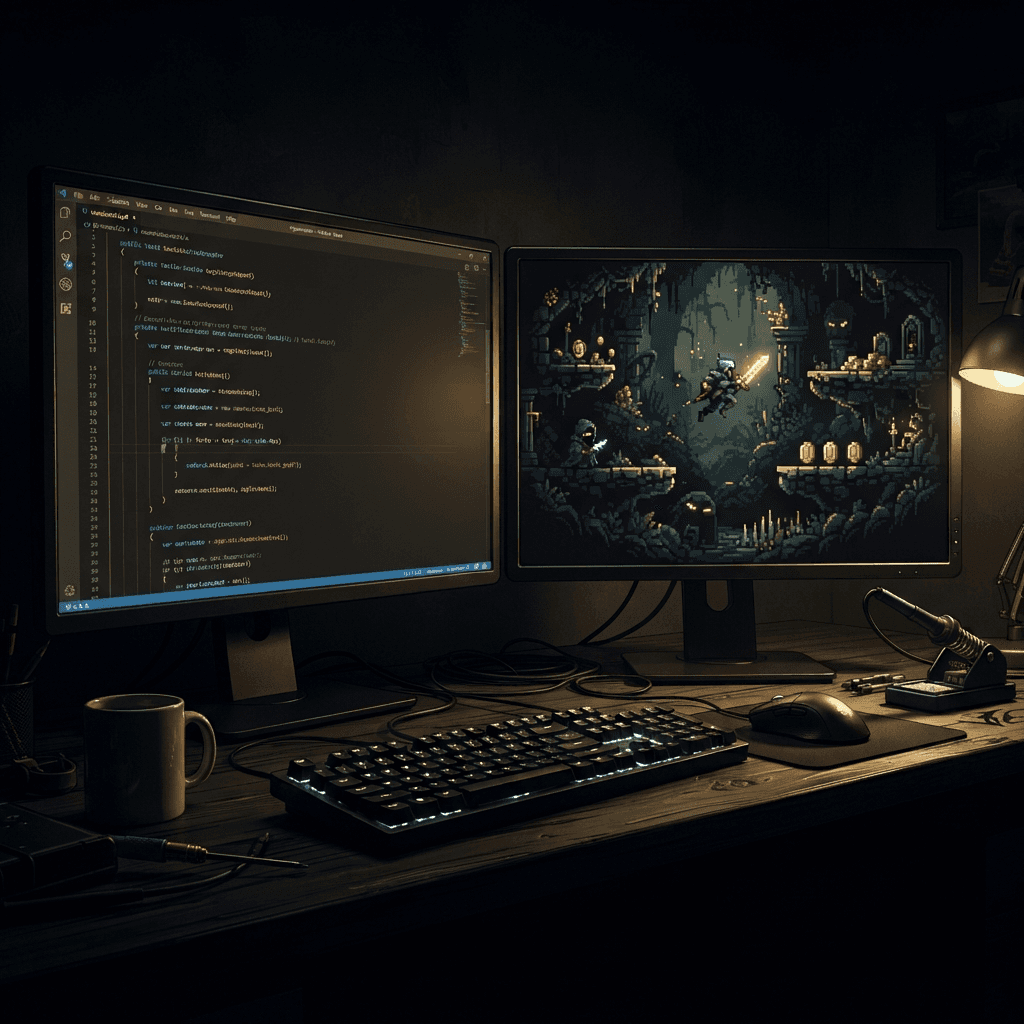
Build a Phaser Game in Cursor with Consistent AI Art (Sprixen MCP)
Clone the Sprixen Phaser starter, connect Sprixen's MCP server to Cursor, and generate a style-locked character with idle and walk animations that import cleanly into Phaser.
Phaser is a good fit for AI-assisted game development because it's just JavaScript: no separate editor, no proprietary scene format, nothing that a coding agent can't read and modify directly. The piece that's usually missing is the art, and specifically art that looks like it belongs together once you have more than one character on screen. This guide sets up a minimal Phaser project in Cursor, connects it to Sprixen's MCP server, and gets a style-locked character with idle and walk animations running in under an hour.
TL;DR: Download the Phaser starter, add Sprixen's MCP config to Cursor, ask the agent for a character and two animations, then wire the resulting atlas into a Phaser scene with this.load.atlas and this.anims.create.
Step 1: Get the starter project
Download the minimal Phaser starter at sprixen.com/starters/sprixen-phaser-starter.zip and unzip it. It's a bare Phaser 3 project: a single scene, a game config with pixelArt: true already set, and an empty assets/ folder where generated art will land. Open the folder in Cursor.
Step 2: Connect Sprixen's MCP server to Cursor
Get an API key from your Sprixen account (sign up free, 6 credits included; $10/month covers 200 generations once you're past the free tier). Then create .cursor/mcp.json in the project root:
{
  "mcpServers": {
    "sprixen": {
      "transport": "http",
      "url": "https://api.sprixen.com/v1/mcp",
      "headers": {
        "Authorization": "Bearer spx_live_YOUR_KEY"
      }
    }
  }
}
Reload the Cursor window (or restart it) so it picks up the new MCP config. You can confirm the connection in Cursor's MCP settings panel, which should list Sprixen's tools once the handshake succeeds.
Step 3: Tell the agent how to use it
Cursor's agent behaves better with an explicit rule file than with hope. Add a short .cursor/rules (or a rule inside your existing rules directory) that says something like:
When this project needs game art (characters, animations, tiles),
use the Sprixen MCP tools instead of placeholder shapes or asking
the user to supply files. Create one Sprixen project for this game
and reuse its ID for every asset so the art style stays consistent.
Export characters with engine: "phaser" so the output atlas matches
this project's import code.
This single instruction prevents the two most common failure modes: the agent inventing a new Sprixen project per character (which breaks style consistency), and the agent falling back to colored rectangles because it didn't think to reach for the art tool at all.
Step 4: Generate the character and animations
Prompt the agent directly in Cursor's chat:
Generate a fox ranger character for this game, 32x32 pixel art,
forest color palette. Generate idle (6 frames) and walk (8 frames)
animations for it. Export the character package for Phaser and
save the atlas files into assets/character/.
The agent calls generate_sprite, polls with get_generation, calls generate_animation twice, polls those, then calls export_character_package with engine: "phaser". That last call returns a manifest and a download URL for a ZIP containing a normalized atlas.png, a TexturePacker-format atlas.json, and a working phaser/example.js reference. Have the agent download the ZIP, extract atlas.png and atlas.json into assets/character/, and read example.js before writing your scene code, since it already has correct frame names.
Step 5: Wire it into your Phaser scene
Load the atlas in preload():
preload() {
  this.load.atlas(
    'fox-ranger',
    'assets/character/atlas.png',
    'assets/character/atlas.json'
  );
}
The atlas JSON follows the TexturePacker "Hash" format: a frames object keyed by frame name (Sprixen names them <animation>/<index>, e.g. walk/0, walk/1), each with its own frame rectangle, plus a meta block. Phaser's atlas loader reads that shape directly, no conversion needed.
Build the animations with generateFrameNames, matching the animation prefix used in the atlas:
create() {
  this.anims.create({
    key: 'idle',
    frames: this.anims.generateFrameNames('fox-ranger', {
      prefix: 'idle/',
      start: 0,
      end: 5,
    }),
    frameRate: 10,
    repeat: -1,
  });

  this.anims.create({
    key: 'walk',
    frames: this.anims.generateFrameNames('fox-ranger', {
      prefix: 'walk/',
      start: 0,
      end: 7,
    }),
    frameRate: 12,
    repeat: -1,
  });

  const player = this.add.sprite(400, 300, 'fox-ranger');
  player.setOrigin(0.5, 1);
  player.play('idle');
}
setOrigin(0.5, 1) matches the pivot Sprixen's character package records in its manifest: bottom-center, so the character's feet stay planted when you swap animations of different heights instead of sliding up and down.
A note on frameTags
Sprixen's atlas also writes a frameTags array into the JSON's meta block, one entry per animation with its frame range. That's informational metadata; Phaser's plain this.load.atlas loader doesn't read it. If you'd rather have Phaser build animations from tags automatically instead of writing anims.create calls by hand, the character package also includes an atlas-aseprite.json in true Aseprite export shape. Load it with this.load.aseprite(key, textureURL, atlasURL) and call this.anims.createFromAseprite(key, ['idle', 'walk']) to get both animations created from their tags in one call. Either approach ends up with the same frames on screen; the Aseprite path just moves the animation definitions into data instead of code.
Step 6: A playable loop in under an hour
From here it's ordinary Phaser: read the keyboard in update(), switch between player.play('walk') and player.play('idle') based on velocity, and move the sprite. Because the atlas already has both animations at the same cell size with a shared pivot, there's no per-frame offset hacking to keep the character from jittering when it changes state. That's the actual time savings versus a manually-assembled sprite sheet: not the art generation itself, but skipping the hour usually spent aligning frames afterward.
Once you have one character working, repeat step 4 for enemies or NPCs in the same Sprixen project. Style Lock keeps the new sprites on the same palette and proportions, so a goblin generated an hour later still looks like it's from the same game as the fox ranger generated first.
Adding a background and a tile pack
A character standing on an empty gray canvas doesn't tell you much about whether the art actually works together. Once the fox ranger is animating correctly, ask the agent to generate a matching tile pack in the same project: "Generate a forest tile pack for this project, grass, dirt path, and tree edges, seamless tiling." The generate_tile tool produces individual isometric or top-down tiles at 1 credit each, and because it's called against the same Sprixen project, the palette matches the character automatically. Load the resulting tileset the same way you'd load any Phaser tilemap image, and place your fox ranger on top of it. This is usually the point where style inconsistencies, if there are any, become obvious: a character and a tileset from the same locked project should read as one piece of art, not two different games glued together.
Troubleshooting common issues
- The atlas loads but nothing renders. Check that
atlas.pngandatlas.jsonwere actually extracted into the path you told Phaser to load from; a common mistake is extracting the whole ZIP (with itsgodot/,phaser/, andunity/subfolders) instead of just the two files Phaser needs. - Frame names don't match. If
generateFrameNamesreturns an empty array, yourprefixalmost certainly doesn't match the exact string used in the atlas JSON, including the trailing slash. Openatlas.jsonand check the actual frame keys before assuming the animation logic is wrong. - The character looks fine standing still but jitters when it starts walking. This is almost always a missing or wrong
setOrigincall, not a frame-rate problem. Confirm it's set to(0.5, 1)on the sprite, not left at the default center. - Cursor's agent keeps asking permission to call the MCP tools. This is standard behavior the first time a new tool is used in a session; approve it once and Cursor typically doesn't re-prompt for the same tool for the rest of that session, though this can vary by Cursor version and your permission settings.
For a broader walkthrough of the MCP setup itself, see generating sprites from Claude Code with MCP. For a deeper dive into the atlas format specifically, see Phaser atlas JSON from AI sprites. Full tool reference at /docs/mcp.
FAQ
Does the starter project require Sprixen, or can I use my own art?
The starter is a plain Phaser project with no hard dependency on Sprixen. It's just set up with the folder structure and pixelArt: true config that make dropping in a Sprixen character package painless.
What if Cursor's agent generates placeholder rectangles instead of calling Sprixen?
This usually means the MCP connection didn't register, or the rule file wasn't picked up. Check Cursor's MCP panel for a green/connected status on the Sprixen server, and confirm the rule file is in a location Cursor actually loads (check your Cursor version's current rules convention, since the file location has changed between versions).
Can I use this same setup for a non-pixel-art style?
Yes. Set pixelArt: false in your Phaser game config and describe a non-pixel style in your Sprixen project (painterly, vector, etc.). The atlas and animation pipeline works the same regardless of the art style; pixelArt: true only affects Phaser's texture filtering.
How many credits does a typical two-animation character cost?
2 credits for the sprite plus 4 credits per standard-quality animation, so 10 credits for one character with idle and walk. The character package export itself doesn't cost additional credits.
Do I need to write the atlas import code myself?
No. The character package's phaser/example.js already contains working load.atlas and anims.create calls for every animation in the export. Copying from that file is faster and less error-prone than writing the frame names from scratch.
Wire Sprixen into your agent.
The Sprixen MCP server lets Claude Code, Cursor and other agents generate sprites, animations and VFX without leaving the chat.
Related Articles
Generate Game Assets from Codex CLI and Gemini CLI with MCP
Connect Codex CLI and Gemini CLI to the Sprixen MCP server and generate style-locked sprites, animations, tiles and music from your terminal agent.
MCP Game Asset Pipelines: What Claude Code and Cursor Can Actually Automate
A grounded guide to MCP for game asset workflows: what an agent can safely automate, where approvals belong, and how to connect generation, validation and export.
How to Generate Game Sprites from Claude Code with MCP (Step by Step)
A complete walkthrough for generating style-consistent game sprites and animations from Claude Code using Sprixen's MCP server, from API key to exported Phaser package.