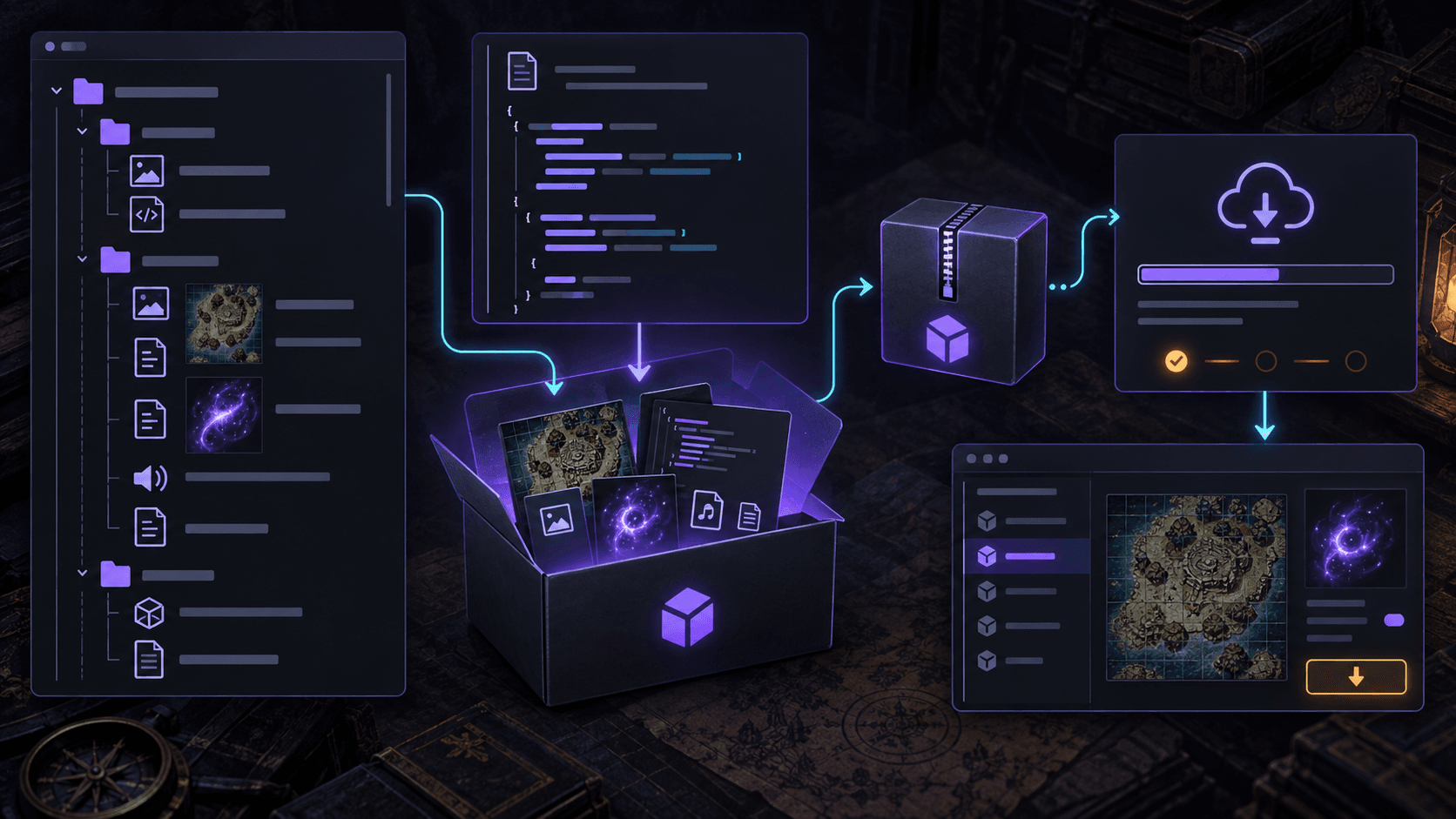
How to Package Maps and Effects as a Foundry VTT Module
A practical Foundry VTT module packaging guide covering module.json, folders, packs, manifest installation, versioning and common rejection errors.
A Foundry VTT module is a delivery contract. The art can be excellent, but Foundry still needs a valid module folder, a manifest it can parse, reachable files and a version it knows how to update. Packaging is what turns a directory of maps and effects into something another GM can install without a private troubleshooting call.
This guide focuses on content modules: maps, effects, audio and compendium data. It does not assume you are writing a large automation system. If your package includes scripts, treat them as a separate risk surface and test them across the Foundry versions you claim to support.
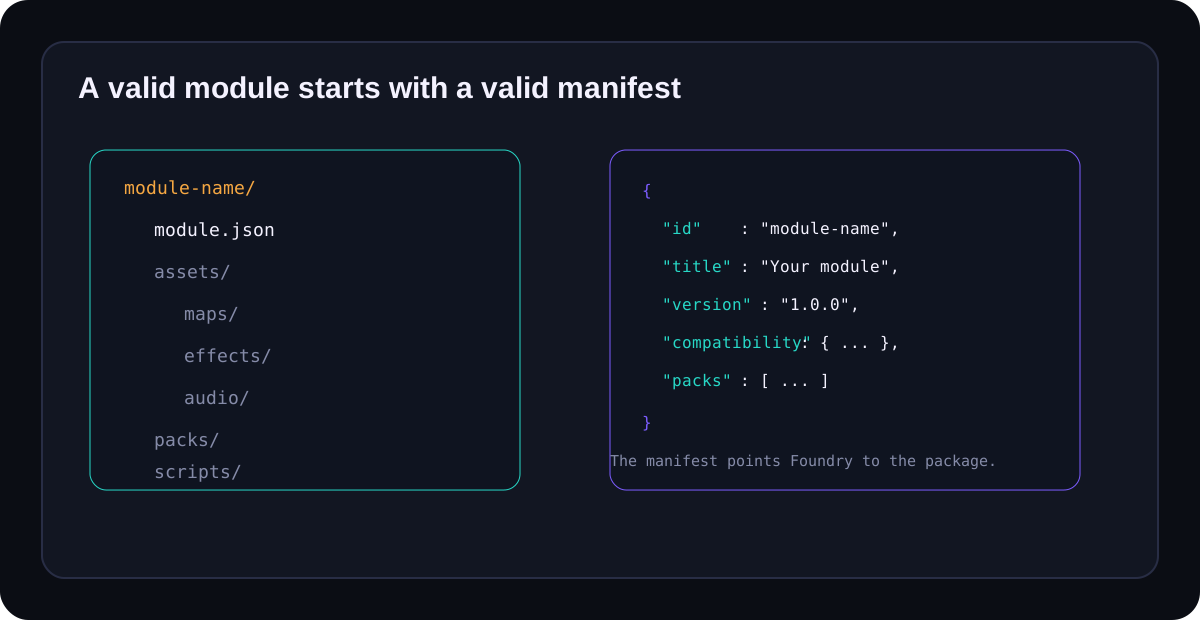
Minimum module structure
| Path | Purpose | Required? | Common mistake |
|---|---|---|---|
module.json | Identity, version, compatibility and package metadata | Yes | File is nested one folder too deep or contains invalid JSON |
assets/ | Maps, tokens, effects and audio | No, but useful | Paths in scenes do not match case-sensitive filenames |
packs/ | Compendium data and packaged content | No | Pack metadata is missing or incompatible with the system |
scripts/ | Optional runtime behavior | No | Code is enabled without a clear compatibility boundary |
styles/ or templates/ | Optional UI and templates | No | Theme changes leak into unrelated worlds |
Start with module.json
Foundry's official module development article says a module is defined by a uniquely named folder containing a manifest called module.json. The bare minimum manifest includes an ID, title, description, authors and version. The ID must match the folder name and use a stable lowercase identifier.
{
  "id": "flooded-harbor-assets",
  "title": "Flooded Harbor Assets",
  "description": "Maps, effects and audio for a flooded harbor adventure.",
  "authors": [{ "name": "Sprixen Team" }],
  "version": "1.0.0",
  "compatibility": { "minimum": "12", "verified": "13" }
}
The example is intentionally small. Add fields only when you can maintain them. A manifest with links that point to missing downloads is worse than a plain manifest that installs reliably.
Use paths that survive installation
Keep filenames lowercase, use hyphens or underscores consistently and avoid spaces. Then reference assets by paths relative to the module root. Test the ZIP after extraction into a clean temporary Foundry data directory, not only from the project folder on your computer. This catches missing files and accidental reliance on local absolute paths.
Compendium packs reduce scene setup
When a map should arrive as a ready-to-browse scene rather than a loose image, a compendium pack is the right direction. Foundry's module documentation describes packs as a recommended location for included compendium content. Decide whether your pack contains scenes, journals, actors, items or roll tables, then name it so a GM can understand the result without opening every entry.
Keep the original source files outside the generated ZIP. The module should be reproducible from a source folder, a manifest and a build step. That is how you update one image without manually rebuilding a dozen copies.
Install by manifest URL
Foundry's module management documentation explains that packages can be installed through the official browser, a manifest URL or manual placement. For a module you distribute yourself, the manifest URL is usually the cleanest path. The manifest should expose a download URL for a versioned ZIP, and that ZIP should contain the module folder at its root.
- Publish the module ZIP and its manifest at stable HTTPS URLs.
- Open Foundry's Add-on Modules installer.
- Paste the manifest URL into the Manifest URL field.
- Install in a clean test world.
- Enable the module and open every included scene, pack and effect.
Version without breaking a campaign
Increment the version when the package changes. Keep old asset paths stable when possible, because a scene or journal may reference them. If a path must change, document it in the changelog and test an existing world that already has the previous version enabled. A version number is useful only if it describes a package users can safely update.
Five errors that make modules fail
| Error | What the GM sees | Prevention |
|---|---|---|
| Invalid JSON | Module is rejected or does not appear | Validate the manifest in CI and before release |
| Wrong folder root | Foundry sees no module.json | Open the ZIP and confirm the first folder contains the manifest |
| Case mismatch | Blank images or missing audio | Use the exact path and test on a case-sensitive environment |
| Bad compatibility range | Warning or disabled package | Test against the Foundry versions named in the manifest |
| Unversioned download URL | Updates are hard to reproduce or roll back | Publish immutable release files and a clear latest manifest |
Sprixen can help with the visual assets that go inside a module, including maps and transparent effects. It does not make a directory a valid module automatically. Use the battle map workflow for the art side, then own the manifest, packaging, compatibility testing and distribution contract.
Make game art that stays in one style.
Generate sprites, animations, tiles and effects that share one locked style per project, in the web app or straight from Claude Code and Cursor. 6 free credits on signup, no credit card required.
Related Articles
Best AI Game Asset Generators in 2026: Sprites, Icons, Tiles, UI and 3D
The AI game asset generators worth using in 2026, compared on what they make (sprites, icons, tiles, UI, 3D), price, free tier, API and MCP access, with results from a real test session.
Best AI Sprite Animation Generators in 2026 (Walk Cycles, Attacks, 8 Directions)
AI sprite animation generators compared: how each one animates (text, image, skeleton, video, 3D), frame counts, directions, export formats and price per animation, plus a real 4 and 8 direction test.
Best MCP Servers for Game Development in 2026 (Godot, Unity, Unreal, Blender, Roblox)
The MCP servers that let Claude Code, Codex and Cursor work inside game engines and generate game assets: Godot, Unity, Unreal, Blender, Roblox Studio, Aseprite and asset generators, with stars and install commands.