
AI Sprite Generator for GameMaker: Strips, Origins and Animation Speed
Generate pixel art sprites and walk cycles with AI and bring them into GameMaker as auto-sliced strip images, with the right origin, playback speed and a four-direction movement script in GML.
GameMaker has a small convenience that makes AI sprites easy to bring in: name a horizontal strip something_strip8.png and it splits the image into 8 frames on import. With a package that already follows that convention, a character with walks in four directions is in your project in a couple of minutes.
1. Generate the character
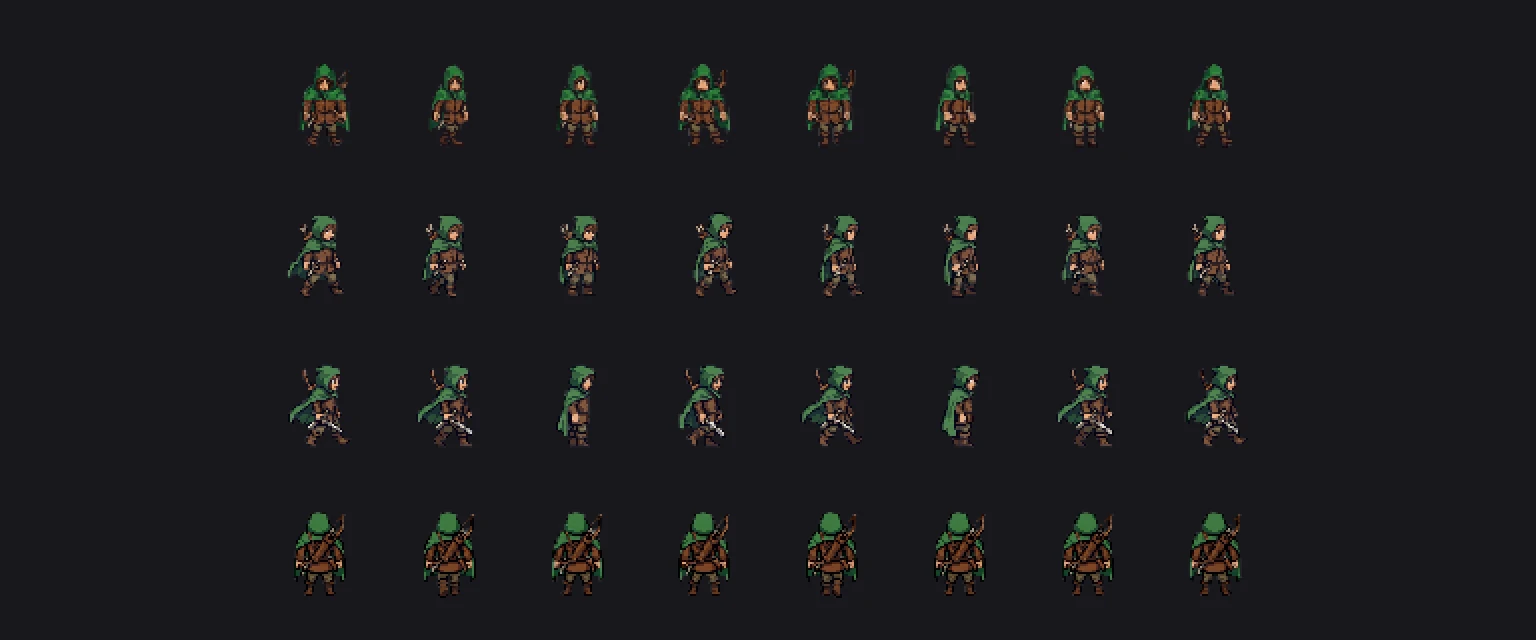
We used a pixel art project at 64x64 with a top-down view and generated a hooded ranger with a walk for down, left, right and up: 18 credits in total, about 10 minutes for the four walks running in parallel.
2. Export for GameMaker
Export the character with the GameMaker target (in the app, or export_character_package with engine: "gamemaker" from an agent). Next to the shared atlas and manifest, the package has a gamemaker/ folder with one strip per animation:
gamemaker/spr_ranger_walk_down_strip8.png
gamemaker/spr_ranger_walk_left_strip8.png
gamemaker/spr_ranger_walk_right_strip8.png
gamemaker/spr_ranger_walk_up_strip8.png
The file names start from the sprite's name, which can be long; shorten them, but keep the _strip8 suffix.
3. Import
- In the Asset Browser, right-click Sprites, Create, Sprite.
- Click Import and choose a strip. GameMaker reads
_strip8and creates 8 frames of 64x64. - Set the Origin to Bottom Centre. Every frame in the package uses a bottom-center pivot, so all four walks share one ground point.
- Set the playback speed to Frames Per Second and the value to 12 (from
manifest.json). Leaveimage_speedat 1 on the instance; it multiplies the sprite's own speed. - Turn off texture interpolation in Game Options, Graphics, so pixels stay sharp.
4. Four-direction movement in GML
Create event:
walk_speed = 2;
facing = spr_ranger_walk_down;
Step event:
var hx = keyboard_check(vk_right) - keyboard_check(vk_left);
var vy = keyboard_check(vk_down) - keyboard_check(vk_up);

if (hx != 0 || vy != 0) {
    x += hx * walk_speed;
    y += vy * walk_speed;
    if (abs(hx) > abs(vy)) {
        facing = hx > 0 ? spr_ranger_walk_right : spr_ranger_walk_left;
    } else {
        facing = vy > 0 ? spr_ranger_walk_down : spr_ranger_walk_up;
    }
    sprite_index = facing;
    image_speed = 1;
} else {
    image_speed = 0;
    image_index = 0;
}
When the player stops, the sprite holds frame 0 of the last direction. Add an idle animation later and switch to it in the else branch.
Make the rest of the game match
Generate enemies, NPCs, tiles and an icon pack in the same project: they share the palette, resolution and top-down angle. For icon and HUD sizes, see the game icon sizes cheat sheet, and for the 4 versus 8 direction decision, our top-down sprite sheet guide.
FAQ
How do I import a sprite strip in GameMaker?
Name the PNG with a _stripN suffix, where N is the frame count, and import it in the Sprite Editor. GameMaker splits it into N frames automatically.
How do I set animation speed in GameMaker?
Set the sprite's playback speed in the Sprite Editor, in frames per second or frames per game frame. The instance variable image_speed multiplies that speed; 1 plays it as set.
Can AI generate GameMaker-ready sprites?
Yes. Generate the character and animations, then export strips named with the frame count and a shared bottom-center origin, ready to import.
Generate sprites that actually match.
Style-locked sprite generation keeps every character, tile and animation in your project visually consistent. 6 free credits on signup, no credit card required.
Related Articles
AI Sprite Generator for Unity: From Prompt to Animated Sprite in One Import
Generate pixel art sprites and walk cycles with AI and import them into Unity as a sliced sprite sheet with pivots and animation clips: package contents, import settings and a player script.
2D Walk Cycle Sprite Sheets: Frame Counts, Sizes and How to Generate a Consistent One with AI
How many frames a 2D walk cycle needs, which sizes and fps to use, strip vs grid layouts, and how to slice the sheet in Godot, Unity and Phaser.
Game Icon Sizes Cheat Sheet: Inventory, Item, Skill and HUD Icons (Godot, Unity, GameMaker)
Which pixel sizes to use for inventory, item, skill and HUD icons, how they scale on screen, and the import settings that keep them crisp in Godot, Unity and GameMaker, with real generated examples.