
Game Icon Sizes Cheat Sheet: Inventory, Item, Skill and HUD Icons (Godot, Unity, GameMaker)
Which pixel sizes to use for inventory, item, skill and HUD icons, how they scale on screen, and the import settings that keep them crisp in Godot, Unity and GameMaker, with real generated examples.
Icon size is one of those decisions that is cheap to make early and expensive to change later: it sets your inventory grid, your skill bar, your HUD and how sharp everything looks when the game scales to 1080p or 4K. This cheat sheet gives the sizes that work, the math behind them, and the engine settings that keep pixel icons crisp.
The cheat sheet
| Icon | Pixel art size | High-res or painted size | Why |
|---|---|---|---|
| Inventory item | 16x16 or 32x32 | 64x64 to 128x128 | Many on screen at once; the grid must fit |
| Item on the ground | Same as the tile, or half | Same as the tile | Must read at world scale |
| Skill or ability | 32x32 or 64x64 | 128x128 | Fewer on screen, needs a readable symbol |
| HUD (hearts, coins, mana) | 8x8 to 16x16 (tiny), 32x32 | 32x32 to 64x64 | Always visible, must not crowd the play area |
| Status effect badge | 8x8 to 16x16 | 24x24 to 32x32 | Sits on top of other icons |
| Achievement | 64x64 | 256x256 | Steam asks for 256x256 JPG achievement icons |
Pick the size by how big it will appear on screen, then work backwards. A 32x32 icon at 4x scale is 128 screen pixels: comfortable for an inventory on a 1080p screen. A 16x16 icon at 4x is 64 screen pixels: right for a dense grid or a HUD row.
Scale by whole numbers
Pixel icons stay sharp only at integer scales (2x, 3x, 4x). At 2.5x some pixels become two screen pixels wide and some three, and edges shimmer when the camera moves. For a 1920x1080 target, a 480x270 game resolution scales by exactly 4; 640x360 scales by exactly 3.
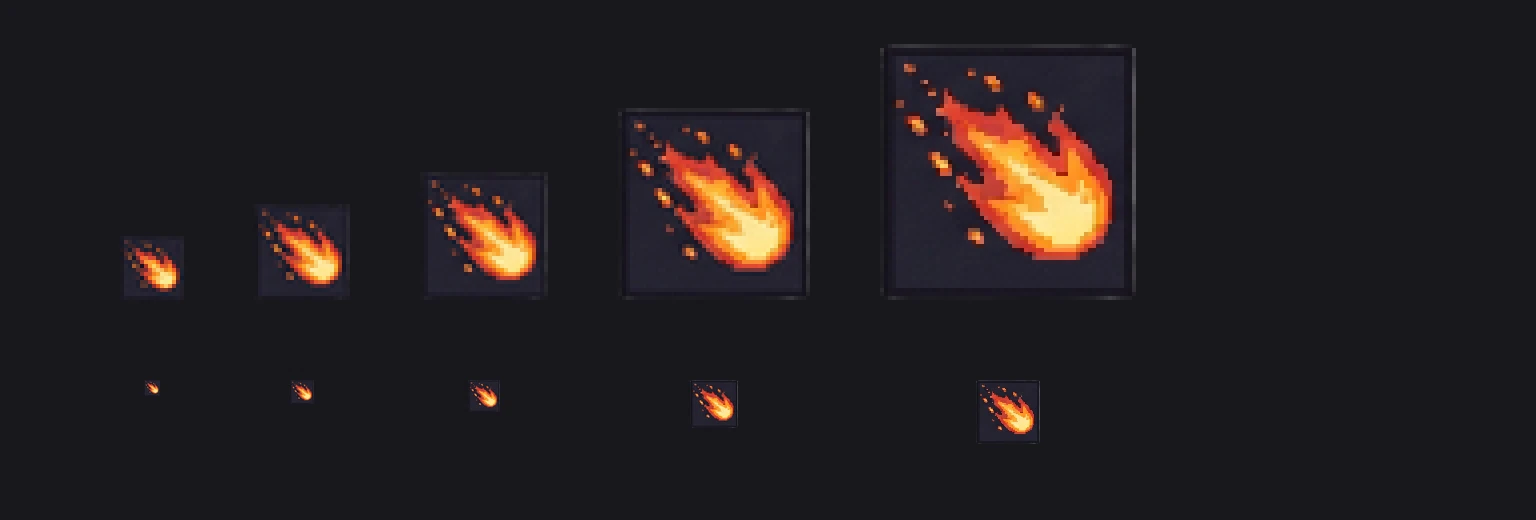
The image above is one 64x64 icon resampled to 16, 24, 32 and 48 px. Down to 32 px the fireball still reads; at 16 px it is a smudge. Small icons need to be drawn small, with fewer, bolder shapes, which is why the cheat sheet lists a separate tiny size for HUD pieces.
Real examples, generated as packs
We generated these for a 64x64 top-down RPG project. Each row is one pack request of up to eight items, which costs 2 credits in Sprixen and took under a minute.



Three rules made these consistent: one project with a locked palette and resolution, one pack per icon family so each set shares lighting and outline weight, and a size override per pack (32x32 for items, 64x64 for skills) instead of resizing afterwards.
One honest note from the same session: the first item pack came back with every icon sitting on a gray card, because the prompt asked for "cells" and the model drew them. We changed how packs are requested and re-ran it; the version above is the second run, with clean transparency.

If an icon tool hands you cards, check the alpha channel before you build a UI on top of them.
Import settings that keep icons crisp
Godot 4
Set Project Settings, Rendering, Textures, Canvas Textures, Default Texture Filter to Nearest, or set Texture Filter to Nearest on the TextureRect. Use Stretch Mode viewport or canvas_items with integer scaling for pixel games.
Unity
In the texture importer set Texture Type to Sprite, Filter Mode to Point (no filter), Compression to None and turn off Generate Mip Maps. Set Pixels Per Unit to your tile size (16, 32 or 64) so one tile is one unit.
GameMaker
Disable texture interpolation in Game Options, Graphics (Interpolate colours between pixels off) and keep the room or view size an integer fraction of the window.
Inventory grid math
For a grid, add the slot padding to the icon size: 32x32 icons in a slot with 2 px of border and 2 px of padding need 40x40 slots. A 6 by 4 inventory is then 240x160 game pixels plus spacing, which fits a 480x270 screen at 4x. Generate the slot frame as its own HUD piece so the icons stay transparent and reusable.
For character and tile sizes, see the pixel art sizes guide.
FAQ
What size should inventory icons be?
32x32 is the safest choice for pixel art inventories, shown at 3x or 4x. Use 16x16 for dense grids or retro styles, and 64x64 to 128x128 for painted or high-resolution games.
What size are skill icons in games?
Pixel art skill bars usually use 32x32 or 64x64 icons; high-resolution games use 64x64 to 128x128 so the symbol stays readable at a glance.
How do I keep pixel art icons sharp in Unity?
Set Filter Mode to Point (no filter), Compression to None, disable mipmaps, match Pixels Per Unit to your art size, and scale the game by whole numbers.
Can I generate a whole icon set with AI?
Yes. Ask for a pack of related items in one request so they share style, keep one project per game so the palette stays locked, and check that the icons come back with transparent backgrounds.
Generate sprites that actually match.
Style-locked sprite generation keeps every character, tile and animation in your project visually consistent. 6 free credits on signup, no credit card required.
Related Articles
How to Make 3D Game Assets with AI: A 2026 Guide from Real Tests
How to make 3D game assets with AI: a style bible from one reference, library models vs custom generation, real sizes, rigging, GLB export and the pitfalls we hit.
AI Sprite Generator for Unity: From Prompt to Animated Sprite in One Import
Generate pixel art sprites and walk cycles with AI and import them into Unity as a sliced sprite sheet with pivots and animation clips: package contents, import settings and a player script.
AI Sprite Generator for GameMaker: Strips, Origins and Animation Speed
Generate pixel art sprites and walk cycles with AI and bring them into GameMaker as auto-sliced strip images, with the right origin, playback speed and a four-direction movement script in GML.