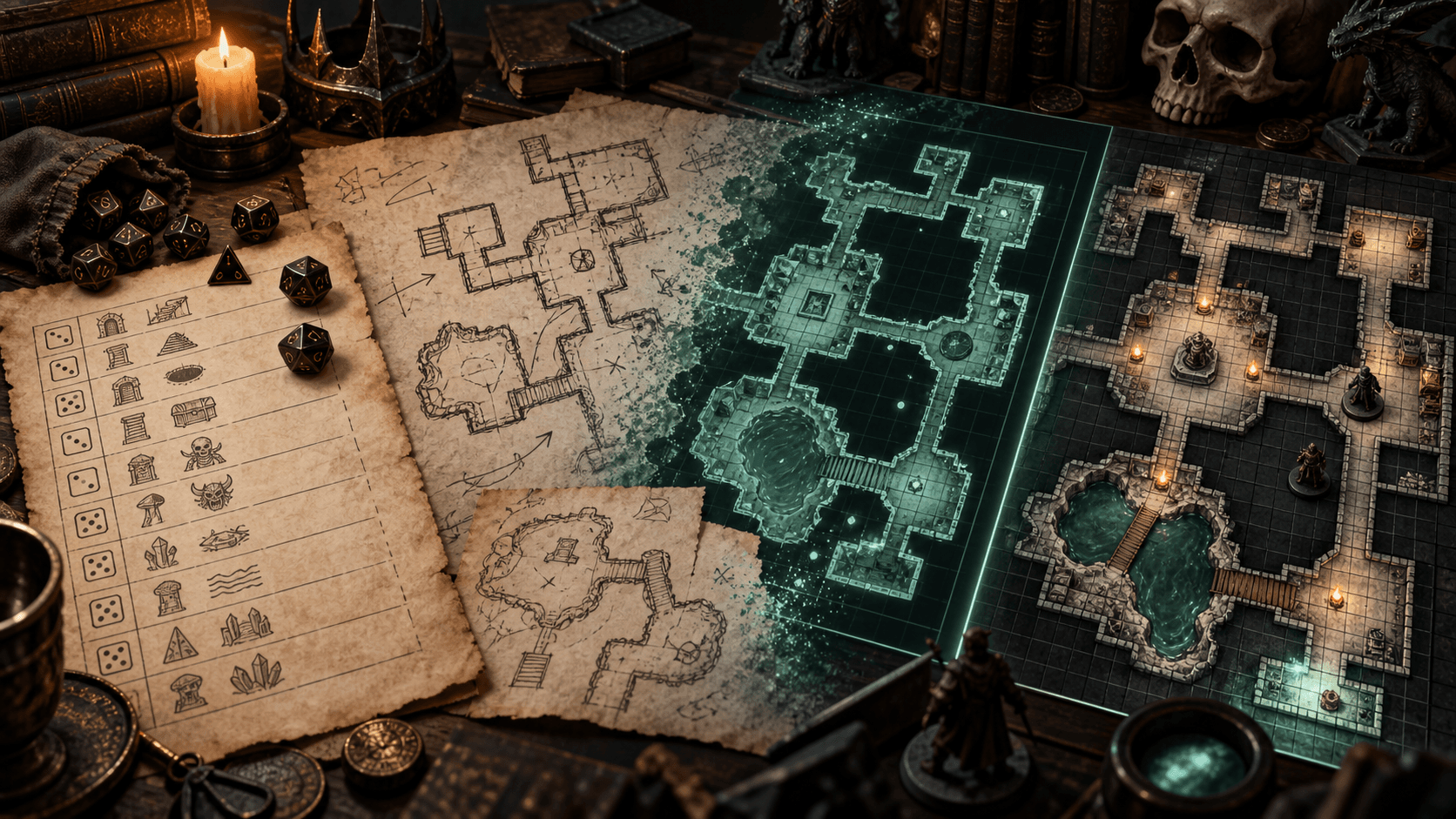
How to Import the Same Battle Map into Roll20, Foundry and Owlbear Rodeo
A VTT-neutral workflow for sizing, aligning and testing one battle map across Roll20, Foundry VTT and Owlbear Rodeo without rebuilding the art three times.
The portable part of a battle map is the image. The grid, walls, lighting and interaction rules belong to the virtual tabletop. If you export one version for each platform, you create three opportunities for an off-by-one error. A better workflow is to preserve one master image, record its grid contract, and configure each VTT from that contract.
Start with a map contract
Before uploading anything, write down four values: map width in squares, map height in squares, the pixel coordinate of the first grid intersection, and the distance between grid lines. For example: 32 by 24 squares, first vertical line at x=96, first horizontal line at y=64, spacing 140 pixels. The exact numbers do not matter as much as recording them.
If your image has no visible grid, measure the room layout from the art. If it has a baked-in grid, decide whether to hide the VTT grid or align it exactly. Two grids that are each slightly correct create a blurry double-grid effect.
Prepare the file once
- Use PNG for line art or maps that need crisp text and WebP or JPEG for photographic textures without transparency.
- Keep the master at its original resolution and export a lighter fallback for slow connections.
- Use a filename that records dimensions, such as
crypt_32x24_140px.png. - Do not crop the image after writing down the grid contract.
Foundry VTT
- Create or open a Scene and set the background image.
- Enter the map width and height in grid units, not just the image pixel dimensions.
- Set the scene's grid size. Foundry defaults to 100 pixels per square, but the value is configurable per scene.
- Pan the image until a known corner or intersection lines up, then check a second point far away.
- Configure walls, doors, lights and token vision only after the image alignment is stable.
Foundry is the most forgiving of the three when you need a scene that includes more than a background. It is also the easiest place to accidentally spend an hour decorating before discovering that the image is shifted by half a square. Validate the image and grid first. The official Scenes documentation is the source of truth for scene dimensions and grid behavior.
Roll20
- Create a new page and drag the map onto the Map Layer.
- Resize the image by the number of map squares, not by dragging until it looks close.
- Use the page's grid settings to confirm the square count and move the image in small increments.
- Choose whether to keep Roll20's grid visible or disable it when the map already has a baked-in grid.
- Duplicate the finished page as a static backup before adding tokens and dynamic lighting.
Roll20's grid convention is different from Foundry's, so do not carry over a raw pixel size and expect it to behave identically. Carry over the square count and the visual anchor instead. A 32 by 24 map remains a 32 by 24 map even when its display density changes.
Owlbear Rodeo
- Open the scene and add the map as the board image.
- Use the grid tool to fit the overlay to two known intersections, one near the top-left and one near the bottom-right.
- Zoom out and confirm that the overlay has not drifted in the middle.
- Add tokens only after the grid is correct, then save a clean scene copy.
Owlbear does not force one global pixel-per-square standard, which makes the two-point alignment check especially important. If the image includes a baked grid, a clean overlay may be easier for new players than trying to match two grids perfectly.
The two-point test
Never validate a map against one corner. A wrong scale can look aligned at the origin and drift by an entire square on the far side. Pick one intersection close to the origin and another at least two-thirds across the map. If both align, test one interior intersection as a sanity check. This catches wrong scale, wrong crop and accidental browser resizing.
What does not transfer automatically
A PNG transfers. A video may transfer with different codec support. Foundry walls, Roll20 dynamic lighting, fog state, tokens, macros and permissions do not transfer with the image. Keep a small platform-specific setup checklist with the master art. That is faster than pretending a generic export can preserve rules that each VTT models differently.
Sprixen's battle map generator and map builder can handle the asset side of this workflow. The portable deliverable is the image plus a written grid contract. The playable deliverable is the configured scene you test in the VTT your group actually uses.
Make game art that stays in one style.
Generate sprites, animations, tiles and effects that share one locked style per project, in the web app or straight from Claude Code and Cursor. 6 free credits on signup, no credit card required.
Related Articles
The Best Animated Battle Map Tools in 2026: A Practical Comparison
Animated maps are useful when motion communicates gameplay. Here is how Foundry, Roll20, Owlbear, Czepeku, Dungeon Alchemist and Sprixen compare on format, setup and table performance.
8 Best D&D Token Makers in 2026 (Free and VTT-Ready)
Token Stamp 2, Foundry's built-in token tools, Roll20, GM Craft Tavern, Hero Forge and Sprixen's free token maker compared, plus the exact token sizes each VTT expects.
How to Make D&D Tokens for Foundry VTT and Roll20 (Sizes, Borders, Formats)
Pixel sizes, borders, and file formats for D&D tokens in Foundry VTT, Roll20, Fantasy Grounds, and Owlbear Rodeo, plus the fastest ways to make a full party's worth.